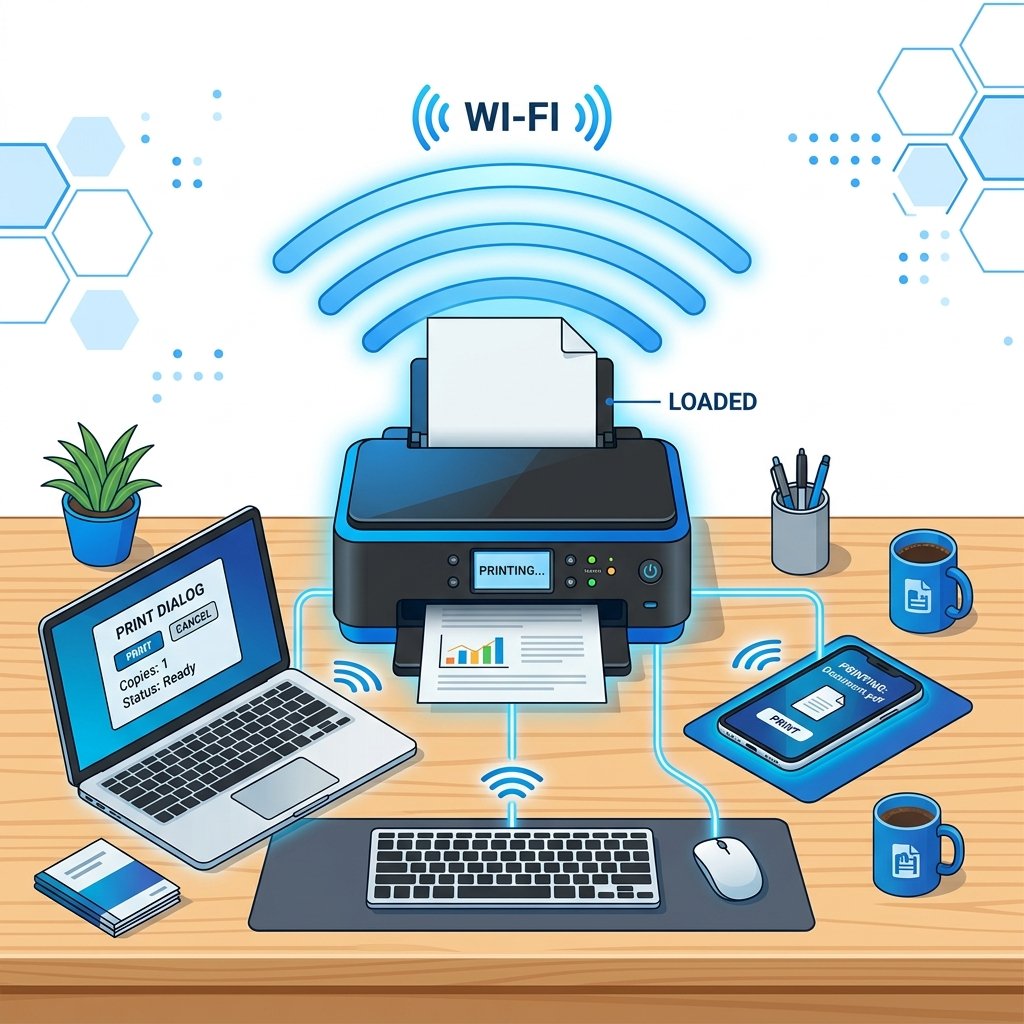
Wireless printing lets you send documents from any device in your home or office without cables. Setting up a wireless printer is straightforward when you follow the right steps.
What You Need
- A Wi-Fi router (2.4GHz or 5GHz)
- Your Wi-Fi network name (SSID) and password
- A computer, tablet, or smartphone to connect
Step 1: Unbox and Power On
Remove all packaging tape and protective materials from the printer. Install the ink cartridges or toner, load paper into the tray, and plug in the power cable. Press the power button and wait for the printer to initialize.
Step 2: Connect to Wi-Fi via the Printer's Control Panel
Most modern printers have a touchscreen or button-based control panel. Navigate to Settings → Wireless Setup Wizard (or Network → Wi-Fi Setup). Select your Wi-Fi network from the list and enter your password. The printer will confirm when connected successfully.
Step 3: Install the Printer Software on Your Computer
Visit your printer manufacturer's official website and download the setup software for your operating system (Windows/Mac). Run the installer and choose "Wireless" as the connection type. The software will detect your printer on the network automatically.
Step 4: Add the Printer on Windows
If you prefer manual setup: go to Settings → Bluetooth & devices → Printers & scanners → Add device. Windows will scan your network and find the printer. Click on it and select "Add device."
Step 5: Add the Printer on Mac
Go to System Settings → Printers & Scanners → click the "+" button. Your wireless printer should appear in the list. Select it and click "Add."
Step 6: Print a Test Page
After installation, print a test page to confirm everything works. On Windows: go to Devices and Printers → right-click the printer → Printer Properties → Print Test Page.
Step 7: Connect Mobile Devices
For printing from your smartphone, download the manufacturer's app (e.g., HP Smart, Epson iPrint, Brother iPrint&Scan). Open the app, add the printer, and you can print directly from your phone or tablet.
Troubleshooting Tips
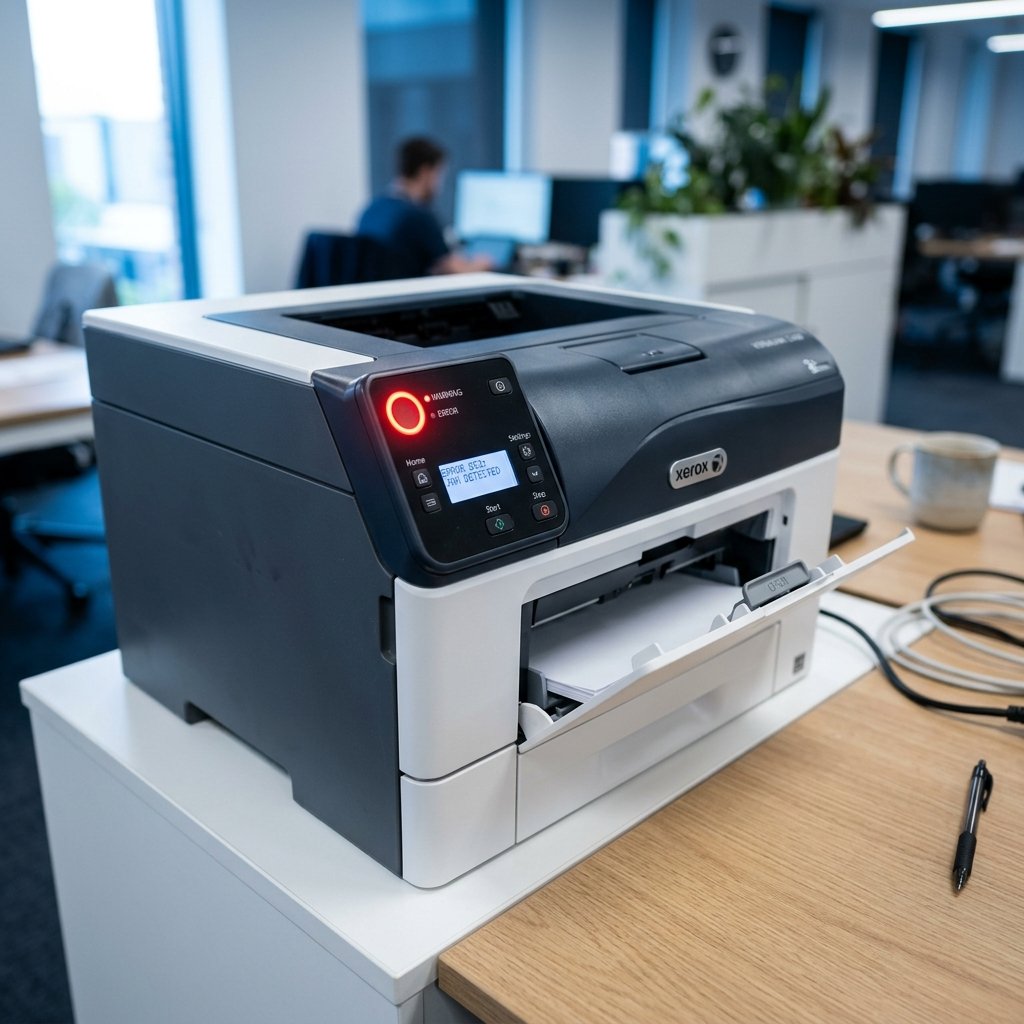
- If the printer isn't found: ensure both the printer and computer are on the same Wi-Fi network.
- If the connection drops: assign a static IP address to the printer through your router's admin panel.
- Keep the printer within range of your router to maintain a stable wireless connection.
Conclusion
Setting up a wireless printer takes under 15 minutes with the right guidance. Once configured, you'll enjoy the convenience of printing from any device without tangled cables.