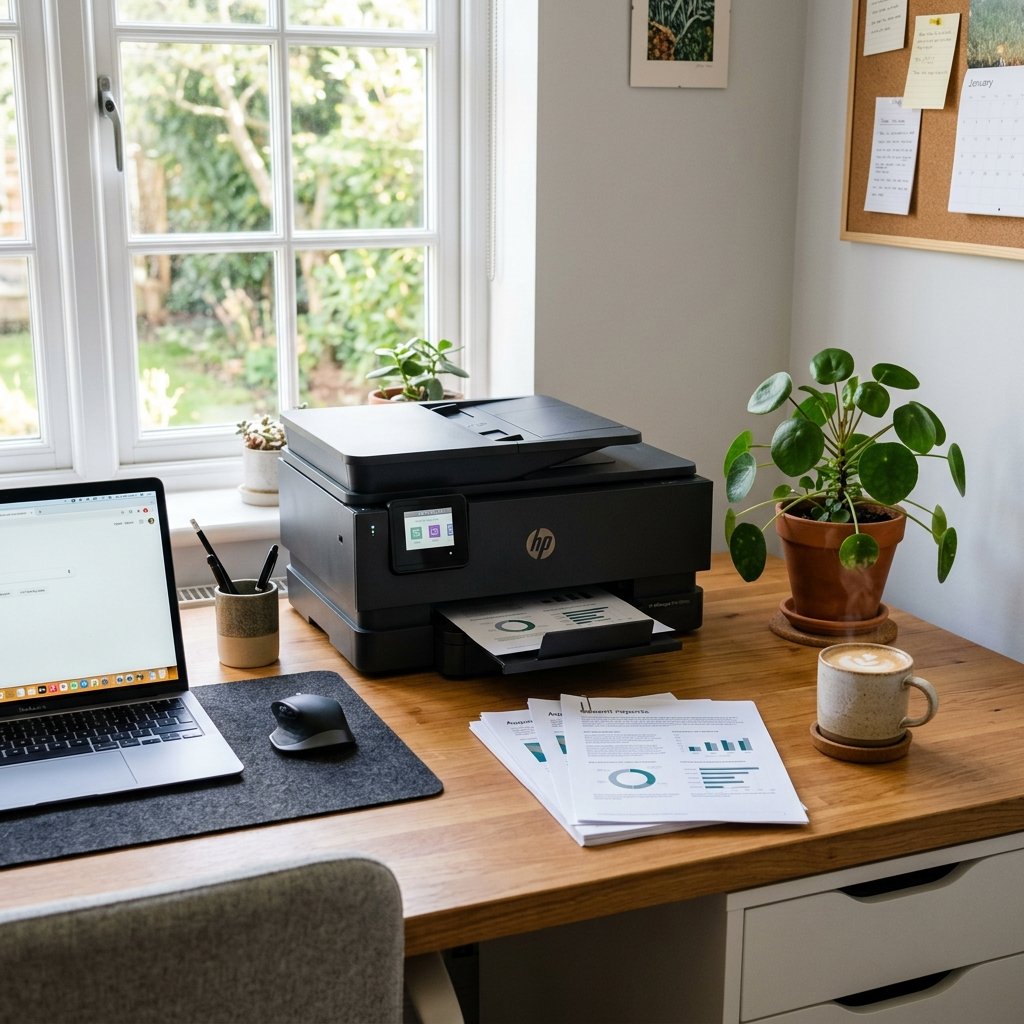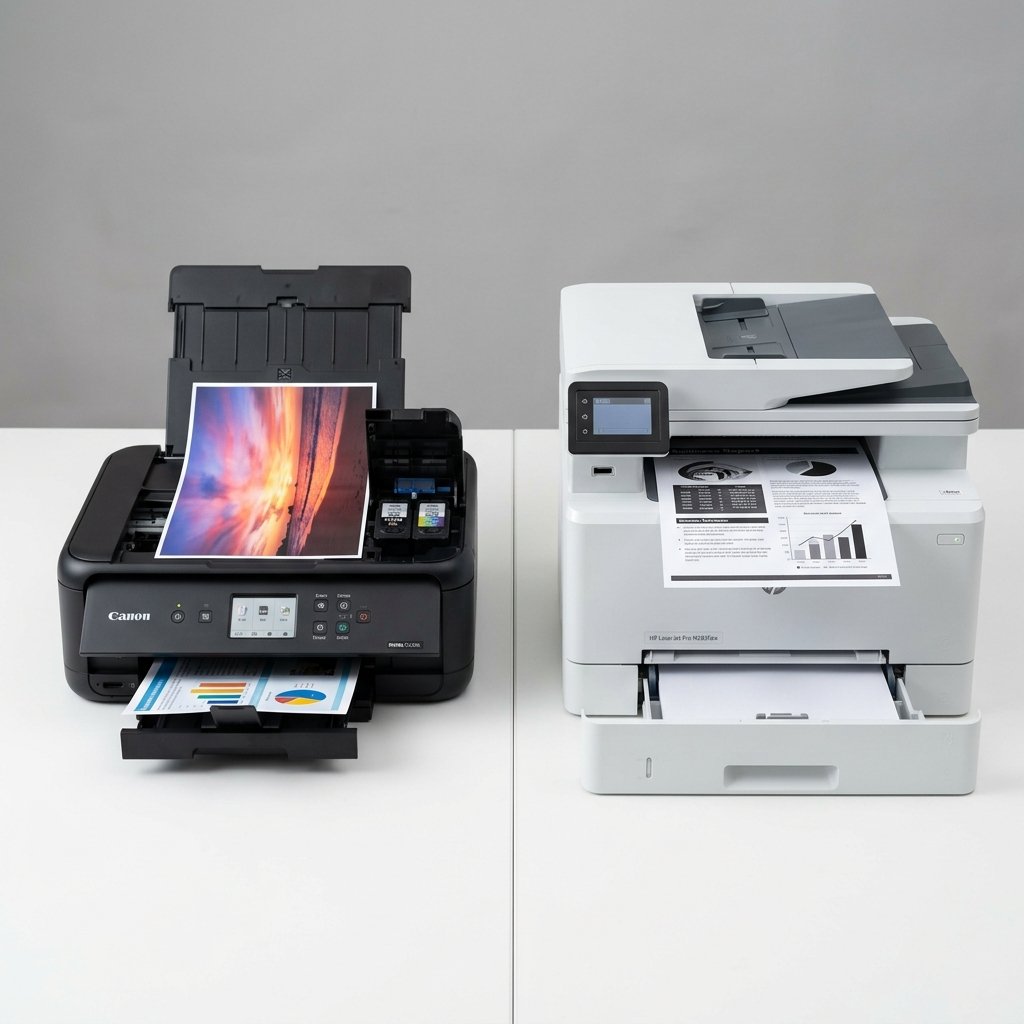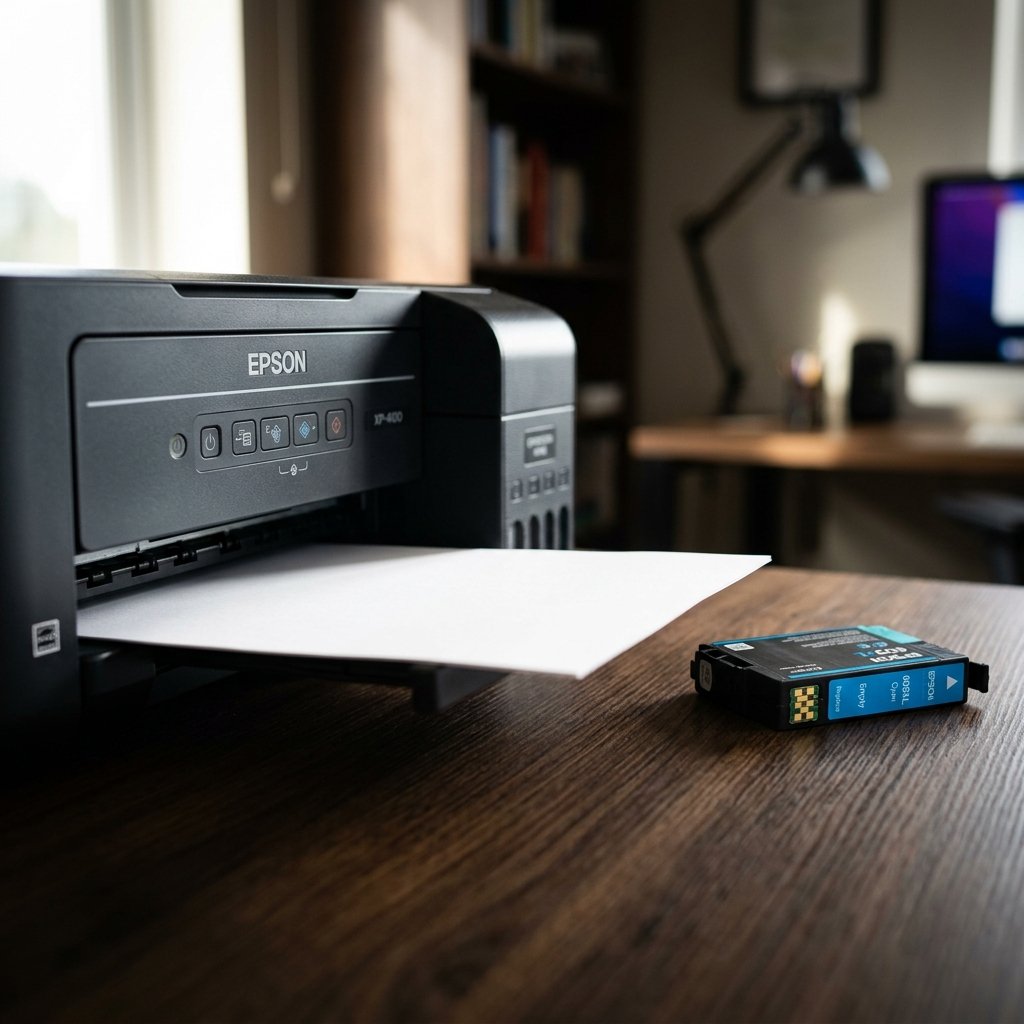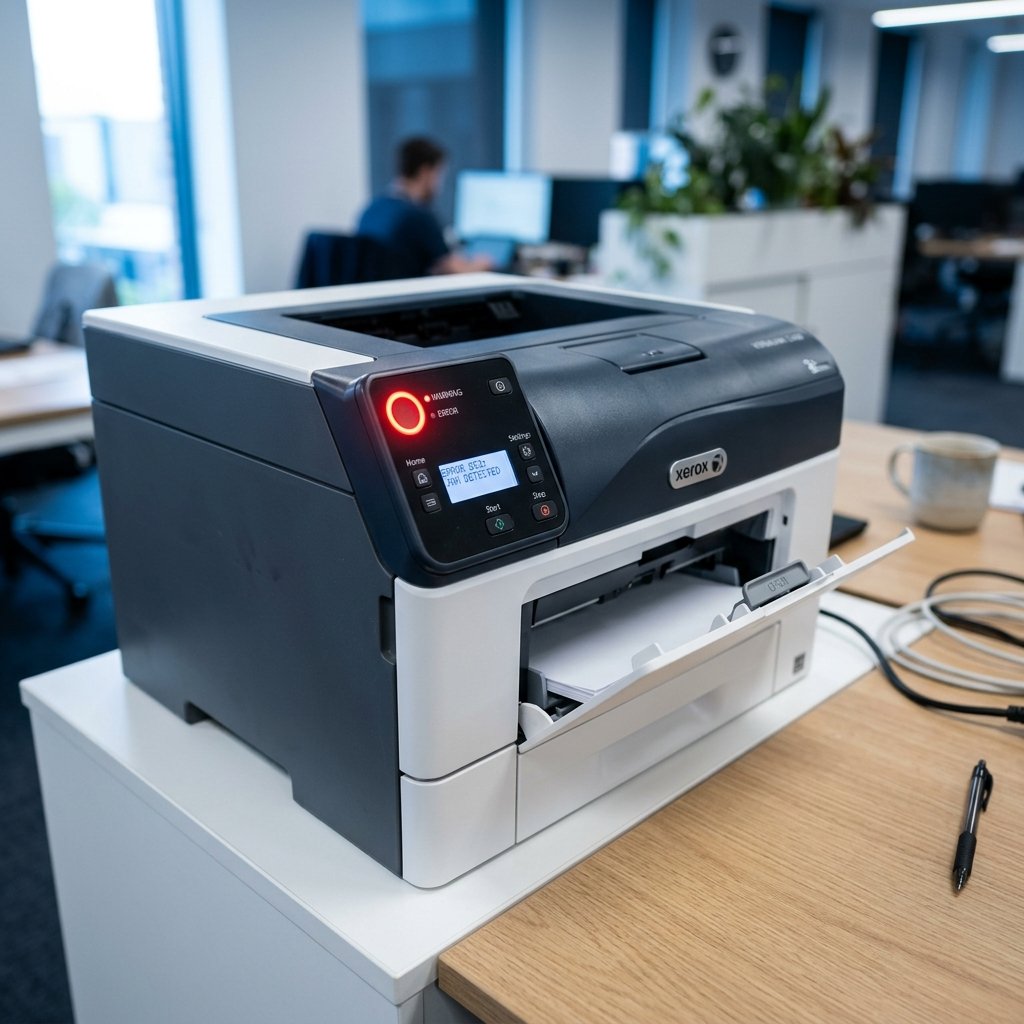
Printers are essential office and home tools, but they can develop issues that interrupt your workflow. Understanding the root causes of common printer problems saves time, money, and frustration.
1. Printer Not Printing
This is the most reported issue. Start by checking whether the printer is powered on and connected — either via USB or Wi-Fi. Confirm there is paper in the tray and ink/toner is not empty. On Windows, go to Control Panel → Devices and Printers → right-click your printer → See what's printing → cancel all stalled jobs. Restarting both the printer and your computer often resolves this instantly.
2. Paper Jams
Paper jams occur due to misaligned paper, overfilled trays, or worn rollers. Power off the printer completely before removing jammed paper. Open all access panels and gently pull the paper in the direction of the paper path — never force it. Clean the rollers with a lint-free cloth dampened with isopropyl alcohol to prevent future jams.
3. Poor Print Quality (Streaks, Fading, Blotches)
If prints look faded or have horizontal lines, your ink cartridge may be low or the printhead may be clogged. Run the built-in printhead cleaning utility from your printer's software. For laser printers, streaks usually indicate a dirty drum or low toner. Shake the toner cartridge gently to redistribute toner before replacing it.
4. Printer Spooler Errors
The print spooler is a Windows service that manages print jobs. When it crashes, nothing prints. Fix: Press Win+R → type "services.msc" → find "Print Spooler" → right-click → Restart. Then navigate to C:\Windows\System32\spool\PRINTERS and delete all files inside (not the folder itself).
5. Driver Issues
Outdated or corrupted drivers cause communication failures between your computer and printer. Visit your printer manufacturer's website to download the latest driver for your operating system. Uninstall the old driver completely before installing the new one.
6. Printer Offline Status
Even when connected, printers sometimes show as "Offline." Go to Control Panel → Devices and Printers → right-click the printer → See what's printing → Printer menu → uncheck "Use Printer Offline." Also try setting the printer as default.
7. Slow Printing
High-resolution settings and large file sizes slow printing significantly. For everyday documents, set print quality to "Draft" or "Normal." Also, ensure the printer driver is not set to print in "Reverse Order" and that your PC has sufficient RAM.
Conclusion
Most printer problems have simple solutions once you know where to look. Regular maintenance — cleaning, updating drivers, and using quality paper — prevents the majority of issues before they start.