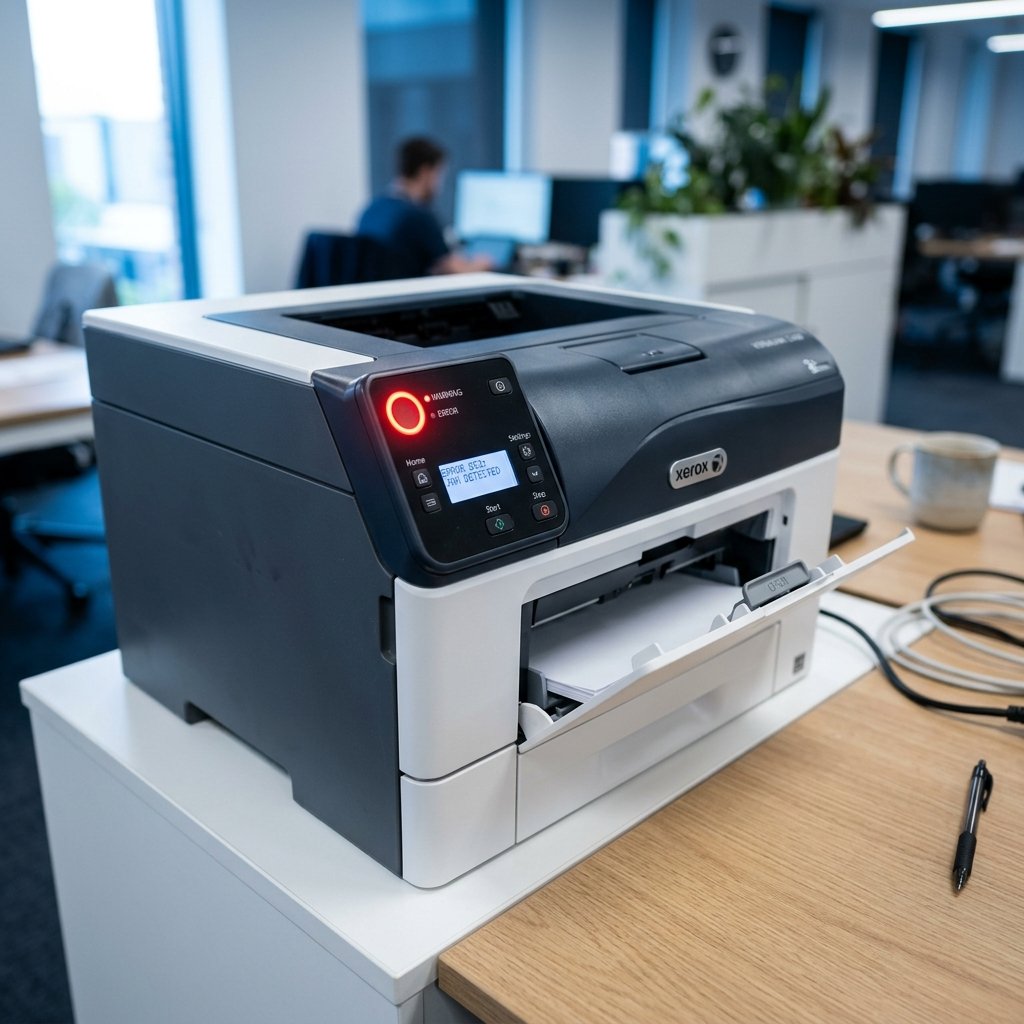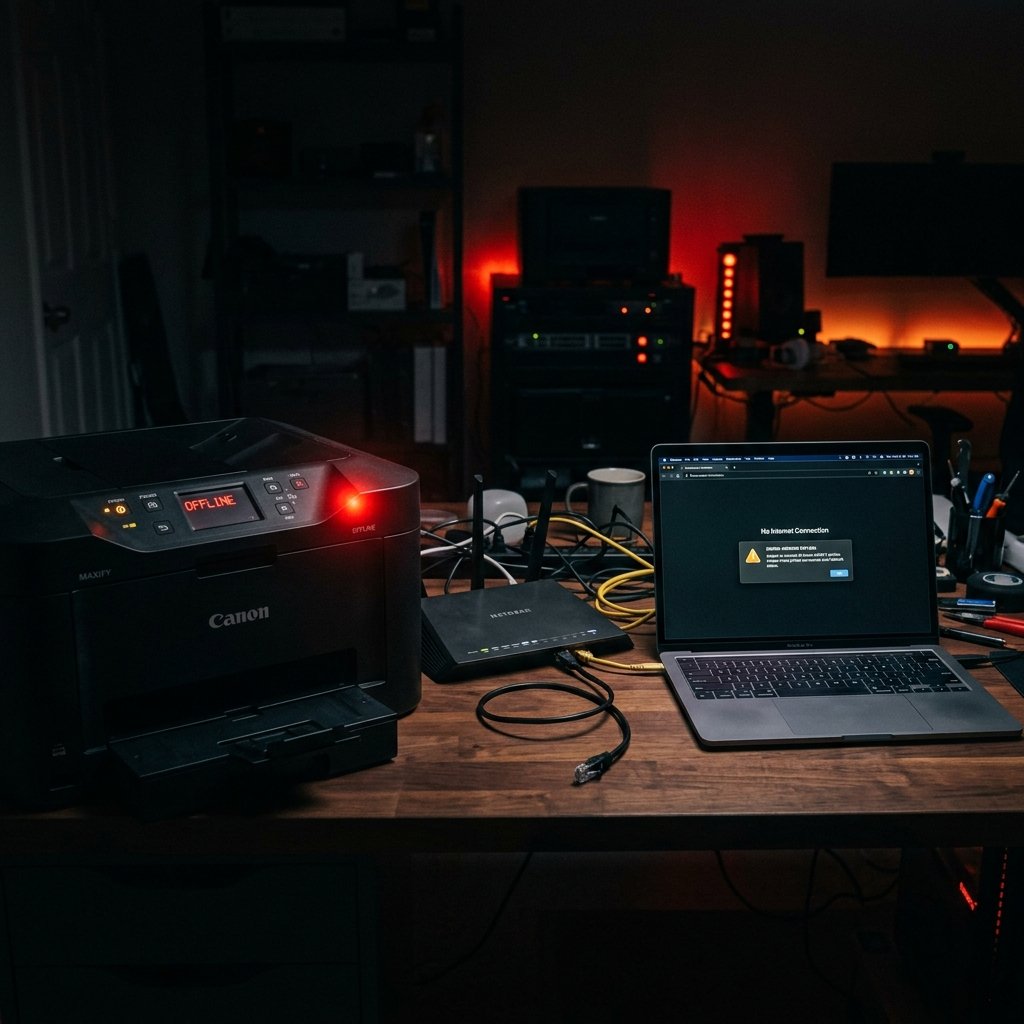
A printer that shows as "Offline" even when it's powered on and connected is one of the most common and confusing issues users face. Here's how to diagnose and resolve it quickly.
Why Does a Printer Show as Offline?
The "Offline" status usually means the computer cannot communicate with the printer. This can be caused by:
- Loose or disconnected cables
- The printer not being set as the default printer
- A stuck print queue
- IP address conflicts (for wireless printers)
- Outdated or corrupted printer drivers
Fix 1: Check Physical Connections
For wired printers, ensure the USB cable is firmly connected to both the printer and the computer. Try a different USB port or cable to rule out hardware faults.
Fix 2: Restart Both Devices
Turn off your printer and computer completely. Wait 30 seconds, then power on the printer first and let it fully initialize before starting the computer. This resets the communication handshake.
Fix 3: Disable "Use Printer Offline" Mode
On Windows: Control Panel → Devices and Printers → right-click your printer → See what's printing → Printer menu → ensure "Use Printer Offline" is NOT checked.
Fix 4: Set as Default Printer
Sometimes Windows switches the default printer to a virtual or old printer. Go to Settings → Bluetooth & devices → Printers & scanners → click your printer → Set as default.
Fix 5: Clear the Print Queue
A stuck or corrupted print job can prevent the printer from going online. Open the print queue (double-click the printer icon in the taskbar notification area) and cancel all pending jobs. Then restart the Print Spooler service via services.msc.
Fix 6: Reassign the IP Address (Wireless Printers)
If your printer's IP address has changed (e.g., after a router restart), your computer may be trying to communicate with the old address. Print a network configuration page directly from the printer to find its current IP. Then update the printer port: Control Panel → Devices and Printers → right-click → Printer Properties → Ports tab → update the IP address.
Fix 7: Reinstall the Printer
As a last resort, remove the printer from your system (Control Panel → Devices and Printers → right-click → Remove device) and reinstall it using the manufacturer's setup software. This ensures a clean, fresh connection.
Fix for Mac
System Settings → Printers & Scanners → select the printer → click the minus button to remove → re-add it using the plus button.
Conclusion
Printer offline errors are almost always software or network configuration issues, not hardware failures. By following these steps methodically, you can resolve the issue in minutes without calling a technician.