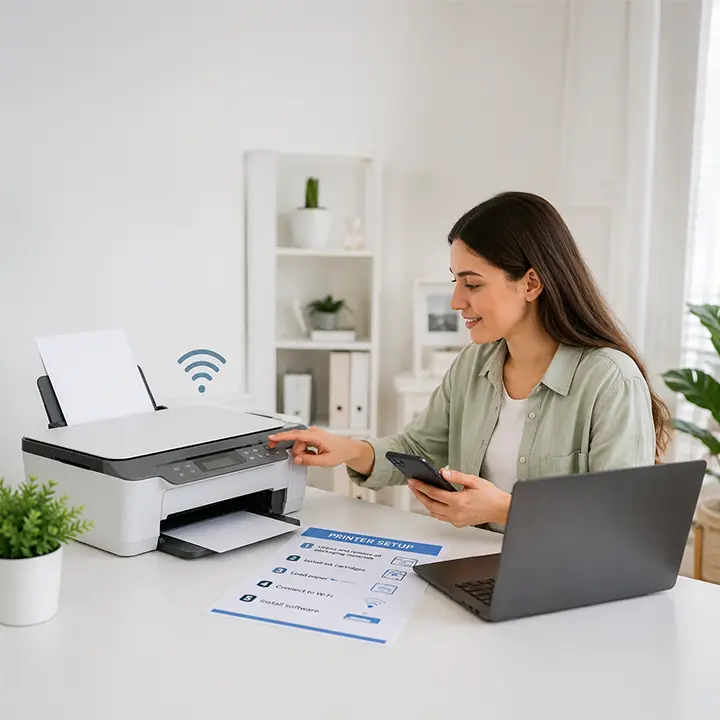
Wireless printers offer the convenience of printing from any device without physical connections, but Wi-Fi connectivity introduces its own set of challenges. Here are the most common wireless printer problems and how to resolve them.
Problem 1: Printer Won't Connect to Wi-Fi
Cause: Wrong password, router compatibility issue, or the printer is out of range.
Solution: Restart both the printer and router. Re-run the printer's Wireless Setup Wizard and carefully re-enter the Wi-Fi password — passwords are case-sensitive. Ensure the printer is within 30 feet of the router without walls or major obstructions in between.
Problem 2: Printer Connects But Won't Print
Cause: IP address conflict or firewall blocking communication.
Solution: Print a network configuration page from the printer to confirm it has a valid IP address. Check your router's DHCP client list to ensure the printer's IP isn't conflicting with another device. Temporarily disable the computer's firewall to test whether it's blocking the printer connection.
Problem 3: Printer Keeps Disconnecting
Cause: The router assigns a different IP each time the printer reconnects (dynamic IP).
Solution: Assign a static IP address to the printer. Access your router's admin panel (typically 192.168.1.1), find the printer's MAC address in the connected devices list, and assign it a reserved/static IP. Then update the printer port on your computer to match.
Problem 4: Slow Wireless Printing
Cause: Weak Wi-Fi signal, network congestion, or high-resolution print jobs.
Solution: Move the printer closer to the router, or use a Wi-Fi range extender. Reduce print resolution for everyday documents. If the network is congested, schedule large print jobs for off-peak times.
Problem 5: Printer Not Found on Network
Cause: The printer is on a different network (e.g., 5GHz vs. 2.4GHz) than the computer.
Solution: Many older printers only support 2.4GHz Wi-Fi. Check your router's settings — if it uses a combined SSID for both bands, try connecting the printer to the 2.4GHz band specifically. Also ensure the computer and printer are on the same subnet.
Problem 6: Mobile Device Can't Find the Printer
Cause: The app is outdated or the phone is on a guest network.
Solution: Update the manufacturer's printing app. Ensure your phone is connected to the same Wi-Fi network as the printer — not a guest network, which typically isolates devices from each other.
Problem 7: Print Jobs Stuck in Queue After Wireless Error
Cause: A failed print job over Wi-Fi left ghost jobs in the queue.
Solution: Open the print queue (Control Panel → Devices and Printers → double-click printer), cancel all jobs, then restart the Print Spooler service via services.msc.
General Prevention Tips
- Keep printer firmware updated to fix known Wi-Fi compatibility bugs
- Use WPA2 security on your router for stable connections
- Avoid placing the printer near microwaves or cordless phones that interfere with 2.4GHz signals
- Restart the printer and router monthly to clear cached connection data
Conclusion
Wi-Fi printer problems are almost always network configuration or signal issues rather than hardware failures. Systematic troubleshooting — checking IP addresses, signal strength, and network settings — resolves the vast majority of wireless printing issues without professional intervention.